
51K
Bitmap Sharpener
World's simplest bitmap tool
This is a free and fast online utility that sharpens BMP (bitmap) images. You can use the configuration options below to sharpen the full image or focus the effect on a custom rectangular or oval selection. Extra options allow you to set the sharpening strength, apply the effect outside the chosen area, and fine-tune the selection's position, size, and rotation. Created by graphics designers from team Browserling.
announcement
the ultimate collection of tools!
We're joining all our tools into OnlineTools.com that offers the ultimate collection of tools. Check it out!
A link to this tool, including input, options and all chained tools.
Click here to select an image from your device, press Ctrl+V to use an image from your clipboard, drag and drop a file from desktop, or load an image from any example below.
Release your mouse to import this file.
Your file is being imported...
Can't convert.
What is a Bitmap Sharpener?
learn more about this tool
This free online browser-based program makes BMP (bitmap) images look sharper, clearer, and more defined. It processes the selected bitmap pixels to bring out fine details such as lettering, fabric texture, small patterns, and slightly soft photo features. You can apply sharpening to the entire BMP or limit the effect to a custom part of the image. The sharpening area can be rectangular or oval, and it can be moved, resized, and rotated with the mouse in the input preview. For exact placement, use the left, top, width, height, and rotation options. Leaving all area fields empty sharpens the whole bitmap, while leaving some position or size fields empty lets the area naturally expand across the available image space. If the selected area should stay unchanged and everything around it should become sharper instead, enable the invert option. The strength setting controls how intense the sharpening effect is: small values add a light crispness, and stronger values create a more pronounced, extra-sharp bitmap look. The output stays in BMP format and can be saved as a sharpened bitmap file. Bmp-abulous!
Bitmap Sharpener examples
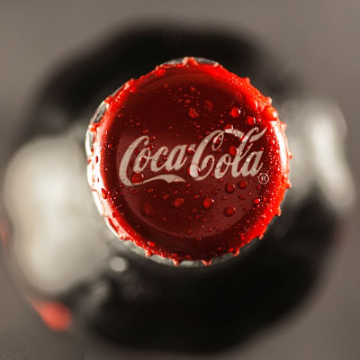
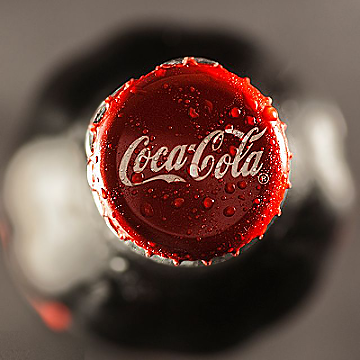
Click to useSharpen a Coca-Cola Bottle Cap
In this example, we place a circular sharpening area over a Coca-Cola bottle cap and increase the sharpness to 100%. This makes the cap much clearer as the main focus of the bitmap: the water droplets gain a crisp, bead-like structure, the red metal edge becomes better defined, and the white logo stands out more cleanly against the glossy surface. (Source: Pexels.)
Required options
Apply sharpening within an
ellipse-shaped selection.
Keep the selected area
unchanged and sharpen
the outside region.
How strongly to sharpen the
selected bitmap pixels.
Horizontal start position.
Vertical start position.
Sharpening area width.
Sharpening area height.
Set the rotation angle for the
sharpening selection.
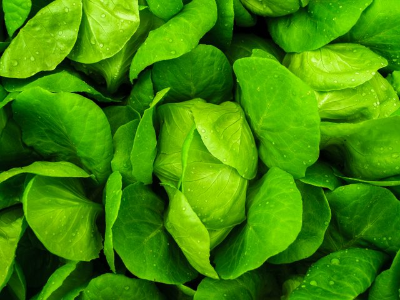
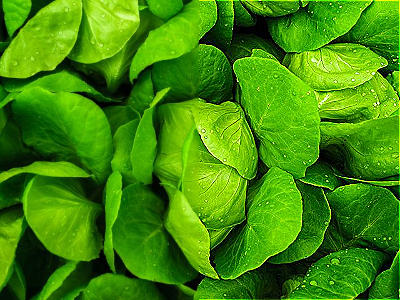
Sharpen the Right Half of Lettuce Leaves
In this example, we sharpen only the right half of a bitmap photo of green lettuce leaves. To do this, we start the sharpening region at the center of the image, at position 200, 0, and leave the width and height fields empty, letting the program automatically extend the effect area to the right and bottom edges. We use a high sharpness value of 130%, which makes the leaf veins and fine fibers much more pronounced, while the left half remains unchanged for an easy side-by-side comparison. (Source: Pexels.)
Required options
Apply sharpening within a
rectangle-shaped selection.
Keep the selected area
unchanged and sharpen
the outside region.
How strongly to sharpen the
selected bitmap pixels.
Horizontal start position.
Vertical start position.
Sharpening area width.
Sharpening area height.
Set the rotation angle for the
sharpening selection.
Sharpen Berry Trays Around One Selection
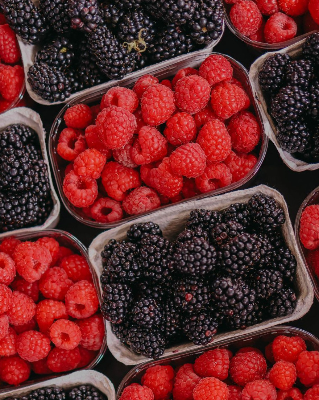
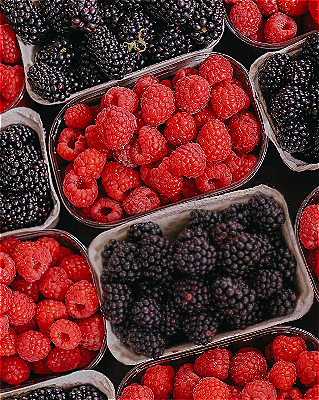
In this example, we use inverted sharpening on a bitmap with trays of raspberries and blackberries. We select one rectangular blackberry tray, rotate the selected area by 16 degrees counterclockwise to match the tray's angle, and then sharpen everything around that selected tray. As a result, the other raspberry and blackberry trays become clearer while the chosen tray stays unchanged. We use a mild 60% sharpness setting to gently emphasize the natural berry details. (Source: Pexels.)
Required options
Apply sharpening within a
rectangle-shaped selection.
Keep the selected area
unchanged and sharpen
the outside region.
How strongly to sharpen the
selected bitmap pixels.
Horizontal start position.
Vertical start position.
Sharpening area width.
Sharpening area height.
Set the rotation angle for the
sharpening selection.
All bitmap tools
Quickly convert an opaque bitmap to a transparent bitmap.
Quickly substitute one color for another in a bitmap.
Quickly find all colors in a bitmap and extract them.
Quickly change the number of bits used by every BMP pixel.
Quickly turn a color bitmap into a grayscale bitmap.
Quickly animate a bitmap sprite sheet.
Quickly convert an animation into a bitmap sprite sheet.
Quickly blur an area of a bitmap.
Quickly sharpen an area of a bitmap.
Quickly pixelate an area of a bitmap.
Quickly create a bitmap file from random, colorful pixels.
Quickly change the width/height of a bitmap.
Quickly select a region from a bitmap.
Quickly rotate a bitmap by any angle.
Quickly add a border around or inside a bitmap.
Quickly delete a border that surrounds a bitmap.
Quickly create a byte array from a BMP image.
Quickly create a BMP image from a byte array.
Quickly convert RGB bitmap colors to BGR channel order.
Quickly convert BGR bitmap colors to RGB channel order.
Quickly create a BMP image by mapping text symbols to colored pixels.
Quickly convert a BMP file to the base-64 encoding.
Quickly convert base-64 encoding to a BMP file.
Coming soon
These bitmap tools are on the way
Edit and Draw Bitmaps
Create and edit bitmaps in your browser.
Compress a Bitmap
Make a bitmap smaller in size.
Uncompress a Bitmap
Convert a compressed bitmap to a raw RGB pixel bitmap.
Swirl a Bitmap
Create a swirl of any radius in a bitmap.
Make Bitmap Black and White
Reduce all bitmap colors to just black and white.
Merge Bitmaps
Join two or more bitmaps together.
Overlay Bitmaps
Place two or more bitmaps on top of each other.
Split a Bitmap
Split a bitmap into multiple independent bitmaps.
Extract a Bitmap Fragment
Extract one or more selected areas from a bitmap.
Duplicate a Bitmap
Make copies of bitmaps and paste them together.
Skew a Bitmap
Skew a bitmap by an arbitrary angle.
Shift a Bitmap
Shift a bitmap to the left or right.
Flip a Bitmap Vertically
Turn a bitmap upside-down.
Flip a Bitmap Horizontally
Make a mirror copy of a bitmap.
Convert Bitmap to Webp
Convert a BMP to a Webp.
Convert Webp to Bitmap
Convert a Webp to a BMP.
Convert Bitmap to PNG
Convert a BMP to a PNG.
Convert PNG to Bitmap
Convert a PNG to a BMP
Convert Bitmap to JPEG
Convert a BMP to a JPG.
Convert JPEG to Bitmap
Convert a JPG to a BMP.
Convert Bitmap to BPG
Convert a BMP to a BPG.
Convert BPG to Bitmap
Convert a BPG to a BMP.
Convert GIF to Bitmap
Save GIF frames as BMP images.
Convert BMP to GIF
Convert a bitmap to a single-frame GIF.
Convert Bitmap to Data URI
Create a Data URL scheme of a bitmap.
Convert Data URI to Bitmap
Convert a Data URL scheme back to a bitmap image.
BitBlt Bitmaps
Bit Blit two or more BMPs.
Replace Bitmap Color Index
Put a new color table in a BMP.
Print Bitmap Color Index
Extract the color table of a BMP.
Print Raw Bitmap Pixels
Extract raw RGB pixels from a BMP and print them out as text.
Convert Raw RGB to BMP
Create a bitmap image from raw RGB pixels.
Randomize Bitmap Color Index
Randomly rearrange colors in the BMP color table.
Optimize a Bitmap
Reduce a BMP's memory footprint.
Destroy a BMP
Destroy parts of a bitmap and make it glitchy.
Subscribe!
Never miss an update
Cool!
Notifications
We'll let you know when we add this tool
Cool!
Feedback
we'd love to hear from you!
Created with love by ![browserling]()

51K
@browserling
We're Browserling — a friendly and fun cross-browser testing company powered by alien technology. At Browserling our mission is to make developers' lives easier, so we created this collection of online bitmap tools. Unlike many other tools, we made our tools free, without ads, and with the simplest possible user interface. Our online bitmap tools are actually powered by our programming tools that we created over the last couple of years. Check them out!
Secret message
If you love our tools, then we love you, too! Use coupon code BMPLING to get a discount at Browserling.
Privacy Policy
we don't log data!
All conversions and calculations are done in your browser using JavaScript. We don't send a single bit about your input data to our servers. There is no server-side processing at all. We use Google Analytics and StatCounter for site usage analytics. Your IP address is saved on our web server, but it's not associated with any personally identifiable information. We don't use cookies and don't store session information in cookies. We use your browser's local storage to save tools' input. It stays on your computer.
Terms of Service
the legal stuff
By using Online Bitmap Tools you agree to our Terms of Service. TLDR: You don't need an account to use our tools. All tools are free of charge and you can use them as much as you want. You can't do illegal or shady things with our tools. We may block your access to tools, if we find out you're doing something bad. We're not liable for your actions and we offer no warranty. We may revise our terms at any time.