
51K
Bitmap Blurrer
World's simplest bitmap tool
This is a free and fast online utility that adds blur to BMP (bitmap) images. You can use the configuration options below to blur the whole BMP or select a rectangular or oval area and soften only that part of the picture. Extra options allow you to adjust the blur strength, blur everything outside the selected area, and move, resize, or rotate the blur area directly in the preview. Created by graphics designers from team Browserling.
We created a cloud browser!
Browserling
Check out our project Browserling – anonymous cloud browser.
A link to this tool, including input, options and all chained tools.
Click here to select an image from your device, press Ctrl+V to use an image from your clipboard, drag and drop a file from desktop, or load an image from any example below.
Release your mouse to import this file.
Your file is being imported...
Can't convert.
What is a Bitmap Blurrer?
learn more about this tool
This free online browser-based program blurs BMP (bitmap) images. You can blur the entire BMP or apply the blur only to a selected area, for example, to hide a license plate in a bitmap photo or soften a readable label in a scanned BMP. You can choose a rectangular or oval blur area. You can also invert the effect, so the tool keeps the selected area clear and blurs everything around it. The radius option controls the blur strength: smaller values create a light softening effect, while larger values make the selected pixels much harder to recognize. Use the left and top values to move the blur area, and use width and height to make it larger or smaller. If you skip the position values, the blur starts from the upper-left corner. If you skip width or height, the blur continues to the edge of the BMP. Left and top may also be negative, so the selection can sit partly outside the BMP when you need to blur along an edge or corner. The rotation angle turns the blur area by the number of degrees you enter. You can also move, resize, and rotate the area directly in the input preview. The tool shows the blurred BMP in the output area, and you can save the final image as a BMP file. Bmp-abulous!
Bitmap Blurrer examples
Click to useBlur a Penguin Chick's Face
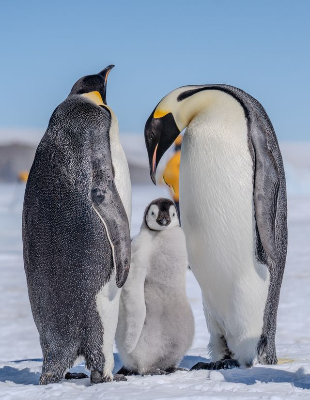
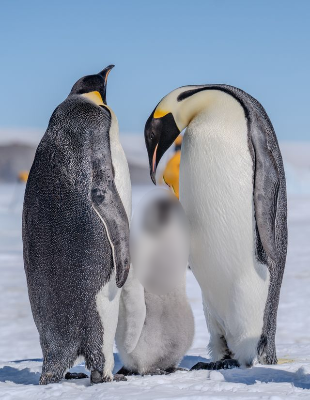
In this example, we blur the face of a penguin chick in a family photo of emperor penguins. We use a light blur radius of 10, which hides the main facial details while keeping the snowy scene natural. For easier placement, we choose an oval blur area and position it directly over the chick's head. (Source: Pexels.)
Required options
Blur pixels inside an oval
selection.
Blur everything outside the
selected blur area.
Blur radius in pixels.
X position of the blur area.
Y position of the blur area.
Blur area width.
Blur area height.
Rotate the blur area by this
many degrees.
Hide a House Name Sign
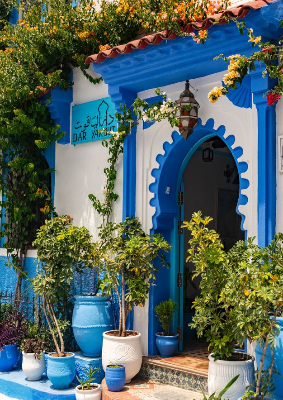
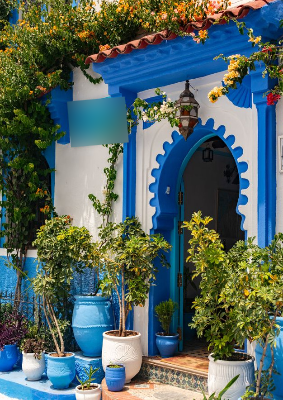
In this example, we hide a house name sign in a beautiful traditional house entrance photo with blue-and-white tones. This makes the porch harder to identify for overly curious tourists. We use a stronger blur radius of 30 to reliably obscure the lettering and rotate the rectangular blur area by 5 degrees so it follows the angle of the sign. (Source: Pexels.)
Required options
Blur pixels inside a
rectangular selection.
Blur everything outside the
selected blur area.
Blur radius in pixels.
X position of the blur area.
Y position of the blur area.
Blur area width.
Blur area height.
Rotate the blur area by this
many degrees.
Create a Duck Focus Effect
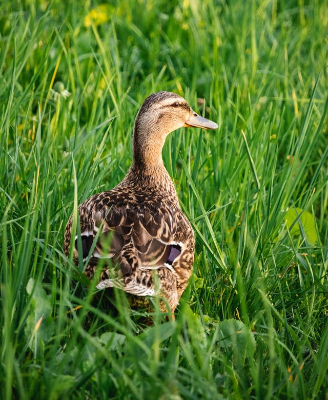
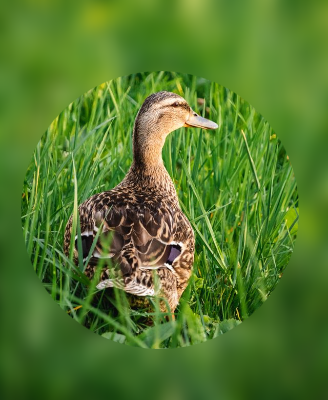
In this example, we blur the area outside the selection instead of blurring the area inside it. We create a perfectly round 280-by-280 pixel circle and center it on a duck sitting in the grass. The duck stays sharp, while the surrounding grass becomes softly blurred, creating an avatar-style focus effect. (Source: Pexels.)
Required options
Blur pixels inside an oval
selection.
Blur everything outside the
selected blur area.
Blur radius in pixels.
X position of the blur area.
Y position of the blur area.
Blur area width.
Blur area height.
Rotate the blur area by this
many degrees.
All bitmap tools
Quickly convert an opaque bitmap to a transparent bitmap.
Quickly substitute one color for another in a bitmap.
Quickly find all colors in a bitmap and extract them.
Quickly change the number of bits used by every BMP pixel.
Quickly turn a color bitmap into a grayscale bitmap.
Quickly animate a bitmap sprite sheet.
Quickly convert an animation into a bitmap sprite sheet.
Quickly blur an area of a bitmap.
Quickly sharpen an area of a bitmap.
Quickly pixelate an area of a bitmap.
Quickly create a bitmap file from random, colorful pixels.
Quickly change the width/height of a bitmap.
Quickly select a region from a bitmap.
Quickly rotate a bitmap by any angle.
Quickly add a border around or inside a bitmap.
Quickly delete a border that surrounds a bitmap.
Quickly create a byte array from a BMP image.
Quickly create a BMP image from a byte array.
Quickly convert RGB bitmap colors to BGR channel order.
Quickly convert BGR bitmap colors to RGB channel order.
Quickly create a BMP image by mapping text symbols to colored pixels.
Quickly convert a BMP file to the base-64 encoding.
Quickly convert base-64 encoding to a BMP file.
Coming soon
These bitmap tools are on the way
Edit and Draw Bitmaps
Create and edit bitmaps in your browser.
Compress a Bitmap
Make a bitmap smaller in size.
Uncompress a Bitmap
Convert a compressed bitmap to a raw RGB pixel bitmap.
Swirl a Bitmap
Create a swirl of any radius in a bitmap.
Make Bitmap Black and White
Reduce all bitmap colors to just black and white.
Merge Bitmaps
Join two or more bitmaps together.
Overlay Bitmaps
Place two or more bitmaps on top of each other.
Split a Bitmap
Split a bitmap into multiple independent bitmaps.
Extract a Bitmap Fragment
Extract one or more selected areas from a bitmap.
Duplicate a Bitmap
Make copies of bitmaps and paste them together.
Skew a Bitmap
Skew a bitmap by an arbitrary angle.
Shift a Bitmap
Shift a bitmap to the left or right.
Flip a Bitmap Vertically
Turn a bitmap upside-down.
Flip a Bitmap Horizontally
Make a mirror copy of a bitmap.
Convert Bitmap to Webp
Convert a BMP to a Webp.
Convert Webp to Bitmap
Convert a Webp to a BMP.
Convert Bitmap to PNG
Convert a BMP to a PNG.
Convert PNG to Bitmap
Convert a PNG to a BMP
Convert Bitmap to JPEG
Convert a BMP to a JPG.
Convert JPEG to Bitmap
Convert a JPG to a BMP.
Convert Bitmap to BPG
Convert a BMP to a BPG.
Convert BPG to Bitmap
Convert a BPG to a BMP.
Convert GIF to Bitmap
Save GIF frames as BMP images.
Convert BMP to GIF
Convert a bitmap to a single-frame GIF.
Convert Bitmap to Data URI
Create a Data URL scheme of a bitmap.
Convert Data URI to Bitmap
Convert a Data URL scheme back to a bitmap image.
BitBlt Bitmaps
Bit Blit two or more BMPs.
Replace Bitmap Color Index
Put a new color table in a BMP.
Print Bitmap Color Index
Extract the color table of a BMP.
Print Raw Bitmap Pixels
Extract raw RGB pixels from a BMP and print them out as text.
Convert Raw RGB to BMP
Create a bitmap image from raw RGB pixels.
Randomize Bitmap Color Index
Randomly rearrange colors in the BMP color table.
Optimize a Bitmap
Reduce a BMP's memory footprint.
Destroy a BMP
Destroy parts of a bitmap and make it glitchy.
Subscribe!
Never miss an update
Cool!
Notifications
We'll let you know when we add this tool
Cool!
Feedback
we'd love to hear from you!
Created with love by ![browserling]()

51K
@browserling
We're Browserling — a friendly and fun cross-browser testing company powered by alien technology. At Browserling our mission is to make developers' lives easier, so we created this collection of online bitmap tools. Unlike many other tools, we made our tools free, without ads, and with the simplest possible user interface. Our online bitmap tools are actually powered by our programming tools that we created over the last couple of years. Check them out!
Secret message
If you love our tools, then we love you, too! Use coupon code BMPLING to get a discount at Browserling.
Privacy Policy
we don't log data!
All conversions and calculations are done in your browser using JavaScript. We don't send a single bit about your input data to our servers. There is no server-side processing at all. We use Google Analytics and StatCounter for site usage analytics. Your IP address is saved on our web server, but it's not associated with any personally identifiable information. We don't use cookies and don't store session information in cookies. We use your browser's local storage to save tools' input. It stays on your computer.
Terms of Service
the legal stuff
By using Online Bitmap Tools you agree to our Terms of Service. TLDR: You don't need an account to use our tools. All tools are free of charge and you can use them as much as you want. You can't do illegal or shady things with our tools. We may block your access to tools, if we find out you're doing something bad. We're not liable for your actions and we offer no warranty. We may revise our terms at any time.