
51K
RGB to BGR Bitmap Converter
World's simplest bitmap tool
This is a free and fast online utility that converts bitmap pixels from RGB channel order to BGR channel order. You can use the configuration options (below) to specify the bitmap's current channel order and choose any of the six channel orders for the output: RGB, RBG, GRB, GBR, BRG, or BGR. Created by graphics designers from team Browserling.
we're on twitter!
tweet tweet
Love what we do? You can follow us on Twitter for updates!
A link to this tool, including input, options and all chained tools.
Click here to select an image from your device, press Ctrl+V to use an image from your clipboard, drag and drop a file from desktop, or load an image from any example below.
Release your mouse to import this file.
Your file is being imported...
Can't convert.
What is a RGB to BGR Bitmap Converter?
learn more about this tool
This free online browser-based program converts the color channels of a bitmap from RGB order to BGR order. By default, it reads each input pixel as red (R), green (G), and blue (B), and rearranges the three channel values as blue (B), green (G), and red (R). In other words, it swaps the positions of the red (R) and blue (B) values. Raw pixel data in uncompressed 24-bit BMP files normally stores color bytes in BGR order. This conversion can fix errors in bitmap images where RGB bytes are accidentally packed as BGR bytes. In the options, you can select a different output order, including RBG, GRB, GBR, BRG, or RGB. If the input bitmap already contains rearranged color channels, you can also specify its current input order so that the program interprets the existing values correctly before converting them to the selected output order. Bmp-abulous!
RGB to BGR Bitmap Converter examples
Click to useDisplay Link's Sprite in BGR Order
In this example, we load a pixel sprite of Link from The Legend of Zelda and change its channel order from RGB to BGR. Standard 24-bit BMP pixel data stores the three color bytes as blue, green, and red. Therefore, this conversion recreates how the sprite would look if that BGR byte sequence were displayed directly as RGB channels without being decoded: the warm gold and brown tones become blue, while much of Link's green clothing stays green because the middle channel keeps its position. (Source: Nintendo.)


Required options
Choose the channel order of
the input bitmap.
Choose the channel order of
the output bitmap.
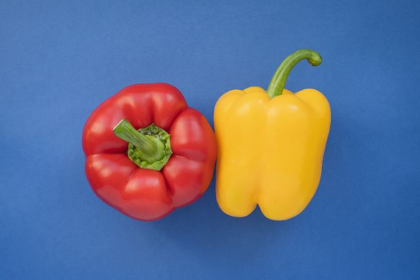
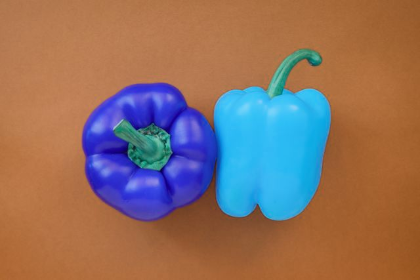
Convert Pepper Colors to BGR Order
In this example, we convert an RGB bitmap of red and yellow peppers on a blue background to BGR order. Exchanging red and blue turns the blue background brownish orange, changes the red pepper to blue-violet, and makes the yellow pepper bright cyan. The green stems change much less because green remains in the middle position of color channels. (Source: Pexels.)
Required options
Choose the channel order of
the input bitmap.
Choose the channel order of
the output bitmap.
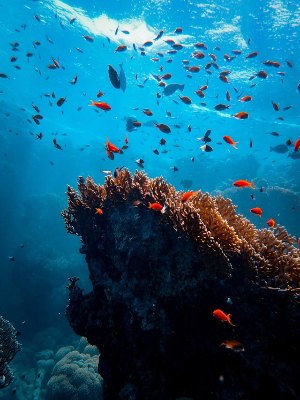
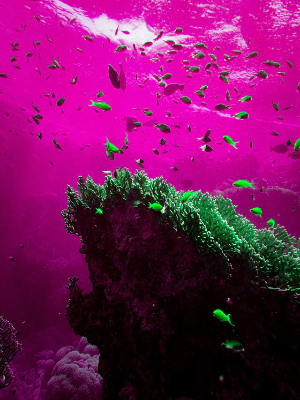
Reorder a Coral Reef Bitmap as BRG
In this example, we select BRG as the new channel order for an underwater bitmap. Moving blue into the first position, red into the second, and green into the third turns the light-blue ocean pink and changes the red tropical fish to lime green. The black shadow areas of the coral reef remain unchanged because black has equal red, green, and blue values of zero. The same is true for every grayscale tone: as its three channel values are equal, rearranging them produces exactly the same color. (Source: Pexels.)
Required options
Choose the channel order of
the input bitmap.
Choose the channel order of
the output bitmap.
All bitmap tools
Quickly convert an opaque bitmap to a transparent bitmap.
Quickly substitute one color for another in a bitmap.
Quickly find all colors in a bitmap and extract them.
Quickly change the number of bits used by every BMP pixel.
Quickly turn a color bitmap into a grayscale bitmap.
Quickly animate a bitmap sprite sheet.
Quickly convert an animation into a bitmap sprite sheet.
Quickly blur an area of a bitmap.
Quickly sharpen an area of a bitmap.
Quickly pixelate an area of a bitmap.
Quickly create a bitmap file from random, colorful pixels.
Quickly change the width/height of a bitmap.
Quickly select a region from a bitmap.
Quickly rotate a bitmap by any angle.
Quickly add a border around or inside a bitmap.
Quickly delete a border that surrounds a bitmap.
Quickly create a byte array from a BMP image.
Quickly create a BMP image from a byte array.
Quickly convert RGB bitmap colors to BGR channel order.
Quickly convert BGR bitmap colors to RGB channel order.
Quickly create a BMP image by mapping text symbols to colored pixels.
Quickly convert a BMP file to the base-64 encoding.
Quickly convert base-64 encoding to a BMP file.
Coming soon
These bitmap tools are on the way
Edit and Draw Bitmaps
Create and edit bitmaps in your browser.
Compress a Bitmap
Make a bitmap smaller in size.
Uncompress a Bitmap
Convert a compressed bitmap to a raw RGB pixel bitmap.
Swirl a Bitmap
Create a swirl of any radius in a bitmap.
Make Bitmap Black and White
Reduce all bitmap colors to just black and white.
Merge Bitmaps
Join two or more bitmaps together.
Overlay Bitmaps
Place two or more bitmaps on top of each other.
Split a Bitmap
Split a bitmap into multiple independent bitmaps.
Extract a Bitmap Fragment
Extract one or more selected areas from a bitmap.
Duplicate a Bitmap
Make copies of bitmaps and paste them together.
Skew a Bitmap
Skew a bitmap by an arbitrary angle.
Shift a Bitmap
Shift a bitmap to the left or right.
Flip a Bitmap Vertically
Turn a bitmap upside-down.
Flip a Bitmap Horizontally
Make a mirror copy of a bitmap.
Convert Bitmap to Webp
Convert a BMP to a Webp.
Convert Webp to Bitmap
Convert a Webp to a BMP.
Convert Bitmap to PNG
Convert a BMP to a PNG.
Convert PNG to Bitmap
Convert a PNG to a BMP
Convert Bitmap to JPEG
Convert a BMP to a JPG.
Convert JPEG to Bitmap
Convert a JPG to a BMP.
Convert Bitmap to BPG
Convert a BMP to a BPG.
Convert BPG to Bitmap
Convert a BPG to a BMP.
Convert GIF to Bitmap
Save GIF frames as BMP images.
Convert BMP to GIF
Convert a bitmap to a single-frame GIF.
Convert Bitmap to Data URI
Create a Data URL scheme of a bitmap.
Convert Data URI to Bitmap
Convert a Data URL scheme back to a bitmap image.
BitBlt Bitmaps
Bit Blit two or more BMPs.
Replace Bitmap Color Index
Put a new color table in a BMP.
Print Bitmap Color Index
Extract the color table of a BMP.
Print Raw Bitmap Pixels
Extract raw RGB pixels from a BMP and print them out as text.
Convert Raw RGB to BMP
Create a bitmap image from raw RGB pixels.
Randomize Bitmap Color Index
Randomly rearrange colors in the BMP color table.
Optimize a Bitmap
Reduce a BMP's memory footprint.
Destroy a BMP
Destroy parts of a bitmap and make it glitchy.
Subscribe!
Never miss an update
Cool!
Notifications
We'll let you know when we add this tool
Cool!
Feedback
we'd love to hear from you!
Created with love by ![browserling]()

51K
@browserling
We're Browserling — a friendly and fun cross-browser testing company powered by alien technology. At Browserling our mission is to make developers' lives easier, so we created this collection of online bitmap tools. Unlike many other tools, we made our tools free, without ads, and with the simplest possible user interface. Our online bitmap tools are actually powered by our programming tools that we created over the last couple of years. Check them out!
Secret message
If you love our tools, then we love you, too! Use coupon code BMPLING to get a discount at Browserling.
Privacy Policy
we don't log data!
All conversions and calculations are done in your browser using JavaScript. We don't send a single bit about your input data to our servers. There is no server-side processing at all. We use Google Analytics and StatCounter for site usage analytics. Your IP address is saved on our web server, but it's not associated with any personally identifiable information. We don't use cookies and don't store session information in cookies. We use your browser's local storage to save tools' input. It stays on your computer.
Terms of Service
the legal stuff
By using Online Bitmap Tools you agree to our Terms of Service. TLDR: You don't need an account to use our tools. All tools are free of charge and you can use them as much as you want. You can't do illegal or shady things with our tools. We may block your access to tools, if we find out you're doing something bad. We're not liable for your actions and we offer no warranty. We may revise our terms at any time.