
51K
Grayscale Bitmap Maker
World's simplest bitmap tool
This is a free and fast online utility that converts colorful bitmap images into grayscale BMP files. You can use the configuration options (below) to choose how the gray value is calculated and use custom red, green, and blue channel weights. Extra options allow you to reduce the grayscale bitmap to a smaller number of gray shades. Created by graphics designers from team Browserling.
We created a cloud browser!
Browserling
Check out our project Browserling – anonymous cloud browser.
A link to this tool, including input, options and all chained tools.
Click here to select an image from your device, press Ctrl+V to use an image from your clipboard, drag and drop a file from desktop, or load an image from any example below.
Release your mouse to import this file.
Your file is being imported...
Can't convert.
What is a Grayscale Bitmap Maker?
learn more about this tool
This free online browser-based program converts BMP (bitmap) images into grayscale BMPs. A color bitmap stores each pixel as a combination of red, green, and blue values, and this tool converts the red, green, and blue values into a single grayscale tone and writes that tone back into each channel. The result keeps the shapes, shadows, highlights, and texture of the original bitmap, but removes the color information and leaves only gray tones. In the options, you can pick how the brightness should be computed. The average method treats red, green, and blue equally. The HDTV method follows the BT.709 weights and gives more influence to green, which usually matches human brightness perception well. The PAL/NTSC method uses the older BT.601 weights and can produce a slightly different tonal balance. If none of these formulas fits your bitmap, enable custom weights and enter your own red, green, and blue multipliers. This is useful when one color channel contains the detail you care about more than the others. You can also limit the output palette to a fixed number of gray levels. With a high value, the BMP keeps smooth gradients; with a low value, it becomes more graphic and poster-like, using only a handful of distinct gray shades. Bmp-abulous!
Grayscale Bitmap Maker examples
Click to useAverage Grayscale Canal BMP
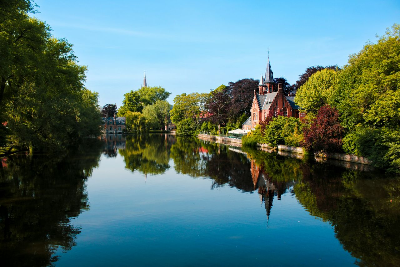
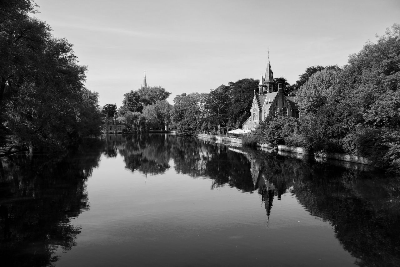
In this example, we convert a bitmap photo of a calm historic canal to grayscale using the average RGB formula. This method gives equal importance to the red, green, and blue channels, so the bright sky, leafy trees, brick building, and dark water reflection are all reduced to a smooth and neutral gray range. (Source: Pexels.)
Required options
Find the gray tone by averaging
red, green, and blue:
(R + G + B)/3
Use your own RGB weights
instead of the selected method:
Restrict the grayscale bitmap
to a fixed number of gray tones.
Cinematic Macaw BMP Portrait
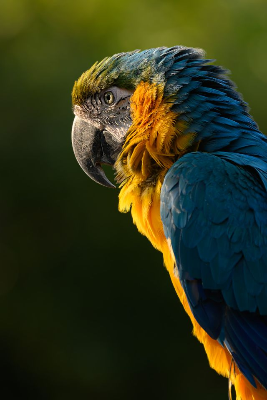
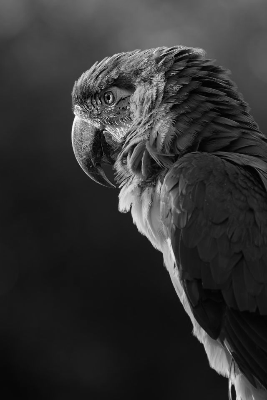
In this example, we turn a colorful macaw parrot portrait into a cinematic grayscale bitmap using the HDTV brightness formula. The BT.709 weights create a rich documentary-film look with deep shadows, clean highlights, and excellent detail separation. Even without the blue and yellow feather colors, the bird's eye, curved beak, and tiny feather layers remain sharp and expressive. (Source: Pexels.)
Required options
Use the ITU-R BT.709 weights
for perceived brightness:
(0.21*R + 0.72*G + 0.07*B)
Use your own RGB weights
instead of the selected method:
Restrict the grayscale bitmap
to a fixed number of gray tones.
Posterized Painted Facades
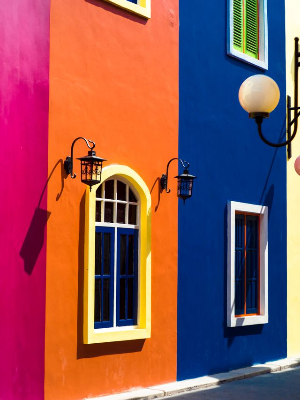
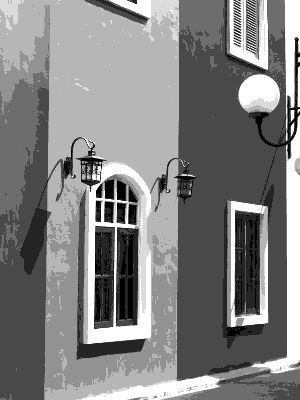
In this example, the bitmap contains painted building facades in strong magenta, orange, and blue colors. We use custom RGB channel weights to control how these colors turn into gray: increasing a channel multiplier makes image areas rich in that channel move toward lighter gray tones, while lower multipliers keep them darker. We also limit the output to eight gray colors, which breaks the wall paint and plaster texture into spotted, poster-like patches. (Source: Pexels.)
Required options
Use your own RGB weights
instead of the selected method:
Multiplier for the red channel.
Multiplier for the green channel.
Multiplier for the blue channel.
Restrict the grayscale bitmap
to a fixed number of gray tones.
Number of gray tones (1 to 256).
All bitmap tools
Quickly convert an opaque bitmap to a transparent bitmap.
Quickly substitute one color for another in a bitmap.
Quickly find all colors in a bitmap and extract them.
Quickly change the number of bits used by every BMP pixel.
Quickly turn a color bitmap into a grayscale bitmap.
Quickly animate a bitmap sprite sheet.
Quickly convert an animation into a bitmap sprite sheet.
Quickly blur an area of a bitmap.
Quickly sharpen an area of a bitmap.
Quickly pixelate an area of a bitmap.
Quickly create a bitmap file from random, colorful pixels.
Quickly change the width/height of a bitmap.
Quickly select a region from a bitmap.
Quickly rotate a bitmap by any angle.
Quickly flip a bitmap image horizontally.
Quickly flip a bitmap image vertically.
Quickly add a border around or inside a bitmap.
Quickly delete a border that surrounds a bitmap.
Quickly create a byte array from a BMP image.
Quickly create a BMP image from a byte array.
Quickly convert RGB bitmap colors to BGR channel order.
Quickly convert BGR bitmap colors to RGB channel order.
Quickly create a BMP image by mapping text symbols to colored pixels.
Quickly convert a BMP file to the base-64 encoding.
Quickly convert base-64 encoding to a BMP file.
Coming soon
These bitmap tools are on the way
Edit and Draw Bitmaps
Create and edit bitmaps in your browser.
Compress a Bitmap
Make a bitmap smaller in size.
Uncompress a Bitmap
Convert a compressed bitmap to a raw RGB pixel bitmap.
Swirl a Bitmap
Create a swirl of any radius in a bitmap.
Make Bitmap Black and White
Reduce all bitmap colors to just black and white.
Merge Bitmaps
Join two or more bitmaps together.
Overlay Bitmaps
Place two or more bitmaps on top of each other.
Split a Bitmap
Split a bitmap into multiple independent bitmaps.
Extract a Bitmap Fragment
Extract one or more selected areas from a bitmap.
Duplicate a Bitmap
Make copies of bitmaps and paste them together.
Skew a Bitmap
Skew a bitmap by an arbitrary angle.
Shift a Bitmap
Shift a bitmap to the left or right.
Convert Bitmap to Webp
Convert a BMP to a Webp.
Convert Webp to Bitmap
Convert a Webp to a BMP.
Convert Bitmap to PNG
Convert a BMP to a PNG.
Convert PNG to Bitmap
Convert a PNG to a BMP
Convert Bitmap to JPEG
Convert a BMP to a JPG.
Convert JPEG to Bitmap
Convert a JPG to a BMP.
Convert Bitmap to BPG
Convert a BMP to a BPG.
Convert BPG to Bitmap
Convert a BPG to a BMP.
Convert GIF to Bitmap
Save GIF frames as BMP images.
Convert BMP to GIF
Convert a bitmap to a single-frame GIF.
Convert Bitmap to Data URI
Create a Data URL scheme of a bitmap.
Convert Data URI to Bitmap
Convert a Data URL scheme back to a bitmap image.
BitBlt Bitmaps
Bit Blit two or more BMPs.
Replace Bitmap Color Index
Put a new color table in a BMP.
Print Bitmap Color Index
Extract the color table of a BMP.
Print Raw Bitmap Pixels
Extract raw RGB pixels from a BMP and print them out as text.
Convert Raw RGB to BMP
Create a bitmap image from raw RGB pixels.
Randomize Bitmap Color Index
Randomly rearrange colors in the BMP color table.
Optimize a Bitmap
Reduce a BMP's memory footprint.
Destroy a BMP
Destroy parts of a bitmap and make it glitchy.
Subscribe!
Never miss an update
Cool!
Notifications
We'll let you know when we add this tool
Cool!
Feedback
we'd love to hear from you!
Created with love by ![browserling]()

51K
@browserling
We're Browserling — a friendly and fun cross-browser testing company powered by alien technology. At Browserling our mission is to make developers' lives easier, so we created this collection of online bitmap tools. Unlike many other tools, we made our tools free, without ads, and with the simplest possible user interface. Our online bitmap tools are actually powered by our programming tools that we created over the last couple of years. Check them out!
Secret message
If you love our tools, then we love you, too! Use coupon code BMPLING to get a discount at Browserling.
Privacy Policy
we don't log data!
All conversions and calculations are done in your browser using JavaScript. We don't send a single bit about your input data to our servers. There is no server-side processing at all. We use Google Analytics and StatCounter for site usage analytics. Your IP address is saved on our web server, but it's not associated with any personally identifiable information. We don't use cookies and don't store session information in cookies. We use your browser's local storage to save tools' input. It stays on your computer.
Terms of Service
the legal stuff
By using Online Bitmap Tools you agree to our Terms of Service. TLDR: You don't need an account to use our tools. All tools are free of charge and you can use them as much as you want. You can't do illegal or shady things with our tools. We may block your access to tools, if we find out you're doing something bad. We're not liable for your actions and we offer no warranty. We may revise our terms at any time.